Do I Need a Pure Sine Wave UPS for a PC?
You need a pure sine wave UPS if your PC or power supply maker requires that output. Active PFC alone doesn't make it mandatory, but pure sine wave is a sensible choice when compatibility with a stepped waveform is unclear.
On this page (8 sections)
- Do I need pure sine wave UPS output for a PC?
- What changes between pure and simulated sine wave?
- How do you check your PC's power supply?
- Which UPS suits your PC and desk?
- How much UPS capacity and runtime do you need?
- How should you set up a UPS for a PC?
- What mistakes shorten backup time or cause surprises?
- Do I need pure sine wave UPS output? Make the final choice
You need a pure sine wave UPS when your PC or power supply maker requires it. If you're asking, “Do I need pure sine wave UPS output for any modern PC?”, the answer is no.
Many PCs work with simulated sine wave output, including some with active PFC power supplies. The right choice depends on compatibility, the equipment you'll connect and how much power it uses.
Start with those checks before choosing between the 3 models below.
Do I need pure sine wave UPS output for a PC?
Choose pure sine wave when it's required or when compatibility is unclear and you want to remove waveform compatibility as a concern. Choose simulated sine wave when your equipment supports it and the UPS meets your load and runtime needs.
Active PFC is a reason to check compatibility, not an automatic reason to reject every simulated sine wave UPS. A compatible simulated model can still provide useful backup power.
Also check any other equipment sharing the battery outlets. A UPS that suits your desktop may need to meet separate requirements for a NAS or another connected device.
What changes between pure and simulated sine wave?
Pure sine wave output has a smooth AC waveform, while simulated sine wave output uses steps to approximate that shape. The distinction matters mainly when these line-interactive UPS units supply battery power.
During normal operation, a line-interactive UPS generally passes utility power through and can adjust voltage within its operating range. Buying pure sine wave doesn't mean the UPS continuously rebuilds all incoming power.
Waveform also doesn't tell you the UPS's capacity or runtime. A smooth output cannot make an undersized unit carry a large PC load.
For the two CyberPower choices head to head, see CP1500AVRLCD3 vs CP1500PFCLCD.
How do you check your PC's power supply?
Find the exact power supply model, then check the manufacturer's UPS guidance. For a prebuilt PC, start with the computer's support documents or ask its maker about supported UPS output types.
A self-built PC's parts record or power supply box may give you the model without opening the computer. Look for both the PFC type and any statement about simulated sine wave compatibility.
Don't open the power supply itself. Its internal capacitors can retain a dangerous charge after it's unplugged.
Do you need pure sine wave UPS output with active PFC?
Active PFC alone doesn't settle the choice because power supply designs differ. Ask whether your exact PSU supports a simulated sine wave UPS if its documents don't give a clear answer.
If you need to buy before you can confirm that, pure sine wave is the simpler choice. CyberPower specifically describes the CP1500PFCLCD as supporting active PFC and conventional power supplies.
Which UPS suits your PC and desk?
The CP1500PFCLCD suits buyers prioritizing active PFC compatibility and watt capacity, the CP1500AVRLCD3 suits confirmed simulated-wave setups, and the BR1500MS2 suits buyers wanting pure sine wave with a named replacement battery. Each needs a separate load check.
CyberPower CP1500PFCLCD: for active PFC desktops
The CP1500PFCLCD combines sine wave output with 1500VA/1000W capacity. It suits a desktop or workstation whose power supply needs that waveform, especially when your measured load calls for more watt capacity than the other two choices offer.
Its 12 outlets split into 6 with battery backup and surge protection and 6 with surge protection only. That gives you room to separate essential equipment from peripherals that can turn off during an outage.
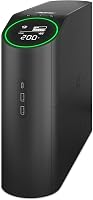
The color LCD tilts upward, which helps if the unit sits below your desk. AVR corrects minor voltage fluctuations without using the battery, and CyberPower backs the unit and battery with a 3-year warranty.
Skip it if your equipment supports simulated output and you don't need its extra watt capacity. Don't assume its higher limit means longer runtime at every load.
CyberPower CP1500AVRLCD3: for confirmed compatible setups
The CP1500AVRLCD3 provides 1500VA/900W capacity with simulated sine wave output. It fits a conventional desktop or other compatible equipment when pure sine wave would add no needed function.
Its outlet split matches the other CyberPower model, so choosing simulated output doesn't reduce the number of battery-backed connections here. A color LCD shows battery and power conditions, and AVR handles minor voltage fluctuations without switching to battery.
CyberPower includes downloadable PowerPanel Personal software and a 3-year warranty covering the battery. Check software support for your operating system if automatic shutdown is part of your plan.
Skip this model if your PSU requires pure sine wave or you can't resolve a compatibility question. The best CyberPower UPS roundup covers other choices within the brand.
APC BR1500MS2: for pure sine wave and battery replacement planning
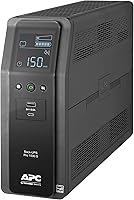
The BR1500MS2 provides 1500VA/900W capacity with pure sine wave output. It suits a PC or workstation owner who wants that waveform and a clear battery replacement path.
It has 6 battery-backed outlets and 4 surge-only outlets, plus an LCD for load and battery status. APC identifies APCRBC163 as its user-replaceable battery and backs the UPS with a 3-year warranty.
APC gives a runtime figure of up to 73 minutes at a 100W load. Treat that as a low-load reference, since a demanding desktop and monitor will draw more power and shorten runtime.
Skip it if you need more watt capacity or more than 4 surge-only outlets. Its pure sine wave output doesn't remove those limits.
How much UPS capacity and runtime do you need?
Choose capacity from the combined load of your battery-backed devices, then choose runtime for the job you need to finish. VA alone isn't enough because each UPS also has a watt limit.
A PC with an 850W power supply doesn't constantly draw 850W. That number describes the PSU's output capacity, so measure the PC's wall draw during your usual demanding work where possible.
Include the monitor, router and external storage you'll keep running. Leave headroom for changing loads and future additions rather than planning to operate at the UPS's maximum.
For a gaming setup, the 1500VA gaming PC guide helps you judge whether that size fits. The broader UPS sizing guide explains watts, VA and headroom.
Decide whether you need minutes to save work or longer backup for a small network load. Compare runtime at your expected watt draw, since a low-load runtime figure won't describe a busy workstation.
How should you set up a UPS for a PC?
Put essential devices on the battery-backed outlets and follow the manual for battery connection, charging and placement. A surge-only outlet won't keep a device running when wall power fails.
Connect the PC and the monitor you need to shut it down. Add the router or storage only if keeping them powered serves your outage plan.
Keep high-draw appliances such as heaters and laser printers off the UPS. Extra outlet space isn't spare electrical capacity.
Plug the UPS into a suitable grounded wall outlet as directed by its manual, with ventilation space around it. Avoid placing it in a closed cabinet or beside a heat source.
If supported, connect the UPS's data link and configure shutdown software for your operating system. Check that it recognizes the UPS and starts shutdown with enough battery time remaining to finish.
What mistakes shorten backup time or cause surprises?
The biggest mistakes are buying by VA alone, using the wrong outlets and expecting normal wall-power operation to prove battery compatibility. Each can leave you without the backup you planned for.
A PC may run normally through a UPS until an outage makes the unit generate its own waveform. Use the maker's compatibility guidance before relying on that transition.
Don't use all available runtime to continue gaming or rendering. Save your work promptly, since load changes and battery age can reduce the time available.
Keep vents clear and pay attention to battery warnings. Use the UPS's built-in self-check as directed by the manual and replace a worn battery with the specified type.
Avoid routinely running the battery flat. Battery backup works best as a bridge to restored power or an orderly shutdown, rather than a daily off-grid power source.
Do I need pure sine wave UPS output? Make the final choice
Pick the CP1500PFCLCD for active PFC compatibility and the highest watt limit among these choices. Pick the BR1500MS2 for pure sine wave with APC's named user-replaceable battery.
Choose the CP1500AVRLCD3 when your equipment supports simulated sine wave and its capacity fits your measured load. If compatibility remains unclear, resolve it with the PSU maker or choose pure sine wave.
Then check outlets and runtime against your actual outage plan. The UPS battery backup buying guide helps you bring those decisions together.
Frequently asked questions
Does a simulated sine wave UPS damage a PC?
Simulated sine wave output doesn't automatically damage a PC; a mismatch can cause noise, instability or shutdown when the UPS switches to battery, so confirm compatibility with the PC or power supply maker. If pure sine wave is required, choose it rather than relying on normal operation while wall power is available.
What does PFC mean on a power supply?
PFC means power factor correction, which concerns how a power supply draws current from AC power. Active PFC uses an electronic circuit for this job; it doesn't tell you the PC's actual power use or prove that simulated sine wave output is unsuitable; check the power supply maker's compatibility guidance.
Do I need pure sine wave for a gaming PC?
Choose pure sine wave if your gaming PC or power supply maker requires it, or if compatibility is unclear and you want to avoid that uncertainty. Gaming alone doesn't decide the waveform; you also need enough watt capacity for the PC, monitor and other devices connected to battery backup.