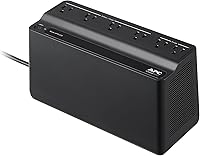
Do You Need a UPS for Your Computer?
You need a UPS for your computer if a sudden power cut would interrupt important work or an unattended task. Its battery provides time to save and shut down, while a laptop already has its own battery for short outages.
On this page (9 sections)
- Do you need a UPS for your computer?
- What does a UPS do during a power cut?
- How do you choose the right UPS size?
- How much runtime should you plan for?
- Which of these 3 UPS units fits your desk?
- How should you set up a computer UPS?
- What mistakes shorten backup time or leave you unprotected?
- How do you care for the UPS battery?
- Do you need a UPS for your computer? Make the decision
You need a UPS for your computer if a power cut would interrupt important work or an unattended task. For a desktop, battery backup buys time to save and shut down instead of losing power at once.
A laptop already has a battery, so its need is different. Your decision comes down to what must stay on, how much power it uses and how long you need to finish safely.
Do you need a UPS for your computer?
A UPS is worth buying when an abrupt shutdown would cost you meaningful work or disrupt something that must finish cleanly. Frequent power blinks make the case stronger, but even an occasional outage can interrupt a long task.
Good reasons to buy one include:
- Editing files with changes that haven't reached autosave.
- Running long exports, calculations or file transfers.
- Using external storage that needs an orderly shutdown.
- Keeping a desktop available through brief power interruptions.
Do you need a UPS for a computer you work on?
A UPS makes sense for a work desktop when you need control over when it shuts down. Include at least 1 monitor in the backup load so you can see the save and shutdown prompts.
For unattended work, look for a supported USB connection and shutdown software. Battery power alone won't tell an idle computer to close safely before the battery runs out.
When can you skip one?
You can usually skip a UPS for a laptop if its battery works and the rest of your setup can lose power safely. A casual browsing desktop is also a lower priority if an interruption costs you little.
A laptop battery won't keep your router, modem or external monitor running. If staying online is the main goal, consider a UPS for your router and modem instead of backing up the whole desk.
What does a UPS do during a power cut?
A UPS supplies temporary power through its battery-backed outlets when utility power fails. Surge-only outlets have no battery backup, even when they sit on the same unit.
Many home models also provide surge protection. Models with automatic voltage regulation, or AVR, can correct some high or low input voltage without switching to the battery.
Keeping your router and modem powered may preserve your connection, but it doesn't guarantee internet service. Equipment elsewhere in your provider's network also needs power.
A UPS can't prevent software crashes, repair a failing drive or replace file backups. For the protection differences, read UPS vs surge protector.
How do you choose the right UPS size?
Choose a UPS whose watt and VA limits both exceed your connected load, then check runtime at that load. VA describes capacity, but it doesn't tell you how many minutes your computer will run.
Start with the devices that must survive an outage: usually the desktop and 1 monitor. Add networking gear only if you need it and can connect it without stretching cords across the room.
A computer's power supply label shows its output capacity, not its actual draw. A tower with a 750W supply doesn't constantly use 750W.
Measure wall power with a plug-in power meter during your heaviest normal task. Include gaming or rendering if you do either, since an idle reading can greatly understate demand.
Leave headroom rather than choosing a unit at its limit. For example, a measured 300W desk load leaves little room on a UPS rated for 330W.
Check power supply compatibility too, especially for a gaming or editing PC. Our guide to whether you need a pure sine wave UPS explains when output waveform affects the choice.
For the full sizing process, read how to size a UPS.
How much runtime should you plan for?
Plan for enough time to save, close apps and shut down, with a margin for delays. A short shutdown window is a more practical goal than trying to work through an unknown outage.
Compare runtime figures at the same watt load. A long figure for a router-sized load tells you little about runtime with a busy desktop attached.
Runtime falls as load rises, and an aging battery holds less energy. Don't assume doubling the load simply halves the available minutes.
If shutdown takes several minutes, allow more than that on paper and arrange an early shutdown. Read how long a UPS lasts in a power outage before choosing around a runtime claim.
Which of these 3 UPS units fits your desk?
Choose the APC BE600M1 for a light setup, the CyberPower EC850LCD for peripheral control, or the APC BX1500M for a larger load and voltage regulation. Match the choice to measured demand before considering outlet count.
APC BE600M1: for a light desktop and basic backup
The BE600M1 suits a low-power desktop when your main goal is saving work and shutting down. Its compact shape also fits a desk area where a tower-style UPS would be awkward.
Its 600VA/330W capacity makes load measurement essential. APC gives a runtime of 23 minutes at 100W, which is a reference for a light load rather than a promise for every desktop.
It has 5 battery-backed outlets and 2 surge-only outlets, plus a USB charging port that works during outages. The internal battery is replaceable with APC's APCRBC154 cartridge.
Skip it if your measured load approaches its watt limit or you expect a demanding tower to keep working for long periods.
CyberPower EC850LCD: for a desk with switchable peripherals
The EC850LCD suits a desk where speakers and other peripherals can switch off when the computer sleeps or shuts down. Its ECO function requires a USB connection to detect the computer's state.
This 850VA standby model has 6 battery-backed outlets and 6 surge-only outlets, including 3 ECO-controlled outlets. The LCD shows battery and power conditions, and CyberPower includes PowerPanel Personal Edition software.
Keep always-on equipment away from the ECO-controlled outlets. Skip this model if you need AVR or your equipment requires pure sine wave battery output, since it uses a simulated sine wave.
The CyberPower EC850LCD review explains its ECO outlets in more detail.
APC BX1500M: for a larger workstation and brownouts
The BX1500M suits a higher-load desk or a home office with recurring voltage dips. Its line-interactive design includes AVR, which corrects some voltage changes without drawing on the battery.
Its 900W limit gives more room for a demanding computer and monitor. The LCD shows load, battery charge, input voltage and estimated runtime, which helps you decide when to shut down.
There are 5 battery-backed outlets and 5 surge-only outlets. The battery can be replaced with APC's APCRBC124 cartridge.
Skip it if you only need backup for a small networking setup and don't need its added capacity. A larger UPS still doesn't guarantee hours of desktop use.
For more choices, see the best battery backups for desktop computers.
How should you set up a computer UPS?
Connect the UPS to a suitable grounded wall outlet, charge it as directed and put essential equipment on the battery-backed outlets. Follow the manual for any battery connection required before first use.
Keep the unit upright in its approved position with clear ventilation. Avoid hot cupboards, direct sun and places where spills could reach it.
Use this setup order:
- Identify the battery-backed and surge-only outlets.
- Connect the computer and the monitor needed for shutdown.
- Add essential networking or storage devices within capacity.
- Install supported shutdown software and configure an early shutdown.
- Confirm that the computer recognizes the UPS and its battery status.
Don't put a router or storage device that must stay on into an ECO-controlled outlet. Labeling cords makes later changes easier.
What mistakes shorten backup time or leave you unprotected?
The most common mistakes are using the wrong outlets, sizing from idle power and connecting unnecessary loads. All 3 can defeat an otherwise suitable purchase.
Keep space heaters and laser printers off the battery outlets. Follow the manufacturer's restrictions for other high-draw devices rather than treating spare sockets as general-purpose outlets.
Don't chain a UPS through power strips or another UPS. Use the wall connection and outlet arrangement its manual allows.
When an outage starts, save promptly and close demanding tasks. Waiting until the low-battery alarm leaves little margin for a slow shutdown.
Keep autosave and separate backups enabled. Neither a healthy battery nor a clean shutdown protects against accidental deletion or a failed drive.
How do you care for the UPS battery?
Keep the UPS cool, watch its status indicators and replace the battery when it no longer provides your required shutdown time. Heat, age and repeated discharge can reduce usable runtime.
After an outage, allow time to recharge before expecting full backup capacity again. Avoid deliberately draining the battery to empty as a routine habit.
Use the correct replacement cartridge and follow the manual's service steps. Take old lead-acid batteries to an appropriate recycling facility.
Our guide on how long a UPS battery lasts explains the signs of decline.
Do you need a UPS for your computer? Make the decision
Buy a UPS if you need an orderly desktop shutdown or must bridge brief interruptions. Skip whole-desk backup if your laptop battery already covers the work and only the network needs support.
Choose the BE600M1 for a measured light load, the EC850LCD when ECO peripheral control helps, or the BX1500M when you need more capacity and AVR. Set up shutdown behavior before relying on any of them.
For the next step, use the UPS battery backup guide for home offices to plan which devices deserve battery power.
Frequently asked questions
Does a desktop computer need a UPS?
A desktop needs a UPS when a sudden shutdown would interrupt important work or an unattended task; it can run without one, but it has no built-in battery to bridge an outage. Choose backup power for the computer and monitor together so you can see, save and close your work.
Will a UPS protect my computer from every power problem?
No, a UPS cannot cover every power problem or prevent every kind of data loss; it provides temporary battery power, and models with AVR can also correct some voltage changes without using the battery. Keep separate file backups because a UPS cannot repair a failing drive or prevent software crashes.
Should a computer plug into a UPS or a surge protector?
Use a UPS battery-backed outlet if you want the computer to stay on during an outage; a surge protector provides no backup power, and a surge-only outlet on a UPS also goes dead when utility power fails. Connect the UPS itself directly to a suitable grounded wall outlet, following its manual.