5 Best Battery Backups for Desktop Computers (October 2026)
The best battery backups for desktop computers include the CyberPower CP1500PFCLCD PFC Sinewave 1500VA for demanding desktop setups, the APC Back-UPS BE600M1 600VA for low-power desks, and the APC Back-UPS Pro BX1500M 1500VA for monitoring desk power.
On this page (10 sections)
- How to choose the best battery backup for your computer
- How these desktop battery backups compare
- Which battery backup suits your desktop?
- Which devices belong on battery-backed outlets?
- Does your computer need pure sine wave battery power?
- How much runtime should a computer battery backup provide?
- How should you set up a computer UPS?
- How do you care for a desktop UPS battery?
- Which buying mistakes leave a computer poorly protected?
- Which is the best battery backup for your computer?
The best battery backup for a computer is the CyberPower CP1500PFCLCD for a demanding desktop that needs sine wave power. The APC BE600M1 suits a low-power desk, while the other picks solve specific needs around monitoring, outlet count, and switching accessories off.
A UPS gives you time to save work and shut down during an outage. Choose for your computer's actual power draw and required shutdown time, rather than expecting any desktop unit to carry you through a long blackout.
Our picks at a glance
-
1
 Best for demanding desktop setups
CyberPower CP1500PFCLCD PFC Sinewave 1500VA
8.9/10 our score
See it on Amazon -
2

-
3

- 4
 Check it
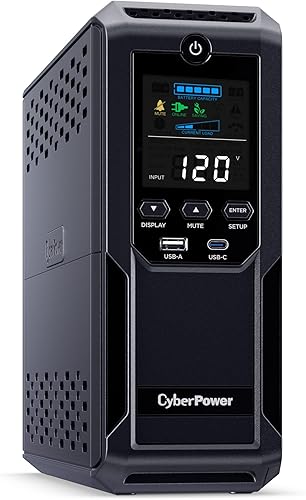
CyberPower CP1500AVRLCD3 Intelligent LCD 1500VA
Best for peripheral-heavy desks - 5
 Check it
CyberPower EC850LCD Ecologic 850VA
Best for switching peripherals off
How to choose the best battery backup for your computer
Choose a UPS that supports your computer's power requirements, carries all essential devices, and gives enough runtime to shut down safely. Watt capacity, output compatibility, and runtime matter more than the number of sockets alone.
Start by deciding what must remain powered. For most desks, that means the computer and one monitor, followed by the modem, router, or external storage needed to finish work safely.
Next, estimate the combined load during your heaviest normal task. A desktop editing video or running a game can draw much more power than the same machine displaying a document.
Finally, check the computer or power supply maker's UPS guidance. Active PFC does not automatically mean every simulated sine wave UPS is unsuitable, but any stated sine wave requirement should guide your choice.
Best battery backup for a computer: start with watts
Use actual wall power use, not the watt number printed on the computer's power supply, to size your UPS. A power supply's label describes its capacity, rather than a fixed draw whenever the PC is on.
A plug-in power meter can help measure the computer and display during normal work and demanding tasks. Include the other devices that will use battery outlets, and allow headroom for brief load changes or future upgrades.
Both the UPS watt limit and VA limit apply. Neither number tells you how many minutes the battery will last, so use the UPS sizing guide before choosing between a compact unit and a larger tower.
How these desktop battery backups compare
The CP1500PFCLCD leads for its sine wave output and higher watt capacity, while the smaller BE600M1 earns its place through compact size and a clear replacement-battery option. The remaining choices suit desks that need power monitoring, more outlets, or automatic peripheral control.
BreakerGuide's scores reflect capacity, output compatibility, useful controls, and fit for computer use. A higher score does not make a large UPS necessary for a small computer.
Runtime figures only help when you compare them at the same load. Outlet count also needs context: surge-only sockets protect accessories from surges but provide no backup time.
| Product | Best for | Capacity | Battery backup outlets | Total outlets | Our score |
|---|---|---|---|---|---|
| CyberPower CP1500PFCLCD PFC Sinewave 1500VA | demanding desktop setups | 1500 VA / 1000 W | 6 | 12 | 8.9 |
| APC Back-UPS BE600M1 600VA | low-power desks | 600 VA / 330 W | 5 | 7 | 8.5 |
| APC Back-UPS Pro BX1500M 1500VA | monitoring desk power | 1500 VA / 900 W | 5 | 10 | 8.5 |
| CyberPower CP1500AVRLCD3 Intelligent LCD 1500VA | peripheral-heavy desks | 1500 VA / 900 W | 6 | 12 | 8.3 |
| CyberPower EC850LCD Ecologic 850VA | switching peripherals off | 850 VA | 6 | 12 | 7.9 |
Which battery backup suits your desktop?
Choose the model that matches your load and how you use the desk. Each pick below has a clear reason to buy it and a reason to choose something else.
CyberPower CP1500PFCLCD PFC Sinewave 1500VA: Best for demanding desktop setups
- 1500VA and 1000W
- Sine wave output for active PFC supplies
- Six battery backup outlets and six surge-only
- Tilting color LCD
- Three-year warranty including the battery
The strongest fit here for a demanding desktop that needs sine wave battery power. Its tilting display helps when the UPS sits below the desk.
Pros
- Supports active PFC and conventional power supplies
- AVR corrects minor voltage changes without using the battery
- Tilting screen makes low placement more practical
Cons
- Heaviest pick at 24.9 pounds
- Capacity alone does not establish runtime at your load
CyberPower CP1500PFCLCD: for demanding desktop setups
Choose the CP1500PFCLCD when a demanding computer needs sine wave battery power and room for essential accessories. It supports active PFC and conventional power supplies, making it the clearest choice here when output compatibility is a priority.
Its 1000W capacity provides the most power headroom in this group. That helps with a workstation and monitor, but you still need a runtime estimate at their combined load before deciding how long you can keep working.
The tilting color screen is useful below a desk, where a fixed display can be hard to read. Automatic voltage regulation, or AVR, corrects minor voltage changes without drawing from the battery.
Skip this model if a smaller UPS already meets your load and shutdown needs. Its weight makes placement a real consideration, especially on a shelf that also holds other equipment.
When the battery eventually needs attention, match the replacement to your exact unit. The CyberPower battery replacement guide explains the checks to make before ordering.
APC Back-UPS BE600M1 600VA: Best for low-power desks
- 600VA and 330W
- Five battery backup outlets and two surge-only
- APC quotes 23 minutes at 100W
- USB charging port
- User-replaceable APCRBC154 battery
A compact choice for a low-power computer, one monitor, and essential network gear. Choose it from measured power use rather than the size of the PC case.
Pros
- Compact body weighs 7.5 pounds
- Five battery outlets cover several small devices
- User-replaceable battery extends service options
Cons
- Limited headroom for demanding towers
- The quoted runtime applies to a 100W load
APC BE600M1: for a low-power computer desk
Choose the BE600M1 for a modest desktop, one display, and small network devices whose combined draw stays comfortably below its limit. Its 330W ceiling makes it a measured-load choice, rather than a default recommendation for every office computer.
APC quotes 23 minutes at a 100W load. That is a useful reference for a light setup, but a higher load leaves less time and an aging battery can shorten it further.
The compact body works where a large tower UPS would crowd the desk area. Five battery-backed sockets also give small devices room to connect, provided their combined power use remains suitable.
The user-replaceable APCRBC154 battery gives you a clear maintenance option later. A replacement battery restores battery service; it does not increase the unit's power capacity.
Skip it for a demanding tower or a desk that is already close to the output limit. Buying a small unit with no spare capacity leaves little room for a second monitor or a more power-hungry computer.
APC Back-UPS Pro BX1500M 1500VA: Best for monitoring desk power
- 1500VA and 900W
- Five battery backup outlets and five surge-only
- LCD shows load and estimated runtime
- Automatic voltage regulation
- User-replaceable APCRBC124 battery
A useful choice for a workstation whose power draw changes with the task. Its LCD shows load, estimated runtime, battery charge, and input voltage.
Pros
- Display helps track available power headroom
- AVR handles high and low input voltage
- Named replacement battery simplifies maintenance planning
Cons
- About 15 inches deep
- Five battery outlets require planning on a busy desk
APC BX1500M: for watching load and remaining time
Choose the BX1500M if you want to see how your desk's changing workload affects the UPS. Its LCD shows load and estimated runtime, alongside battery charge and input voltage.
That is useful for a workstation that alternates between light office tasks and heavier work. Watch the estimate under the task you expect to finish during an outage, rather than relying on the number shown while the computer is idle.
APC quotes 68 minutes at 100W, which applies to that load rather than a fully equipped workstation. AVR handles high and low input voltage without repeatedly using battery power.
Its user-replaceable APCRBC124 battery makes future service easier to plan. Before choosing it, allow space for the roughly 15-inch body depth, plugs, and cable bends.
Skip it if the location is too shallow or your essential devices need more than five battery-backed sockets. Read the APC BX1500M review for more on its desk layout and battery planning.
CyberPower CP1500AVRLCD3 Intelligent LCD 1500VA: Best for peripheral-heavy desks
- 1500VA and 900W
- Simulated sine wave output
- Six battery backup outlets and six surge-only
- Color LCD and USB-A/USB-C charging
- Three-year warranty including the battery
A fit for a desk with several essential devices, provided the computer supports simulated sine wave battery power. Six surge-only outlets also leave room for nonessential accessories.
Pros
- Six battery outlets support a larger essential-device group
- AVR reduces battery use during minor voltage changes
- Color display shows battery and power conditions
Cons
- Simulated output may not meet every computer's requirements
- Heavy to reposition at 23.8 pounds
CyberPower CP1500AVRLCD3: for a desk with several devices
Choose the CP1500AVRLCD3 when you need several battery-backed connections and your computer supports simulated sine wave output. It can suit a tower, monitor, network gear, and essential storage without making every accessory draw from the battery.
The useful distinction is its outlet split: six sockets receive backup power and six provide surge protection only. Count actual plugs before buying, since a wide power adapter can make a neighboring socket harder to use.
AVR helps with minor voltage changes, and the color display shows battery and power conditions. USB-A and USB-C charging also provide a convenient place for mobile devices.
Skip it when your computer requires pure sine wave power. A similar model name or matching VA number does not make it interchangeable with the CP1500PFCLCD.
The CP1500AVRLCD3 vs CP1500PFCLCD comparison helps resolve that choice. Decide on output compatibility first, then compare the features that matter at your desk.
CyberPower EC850LCD Ecologic 850VA: Best for switching peripherals off
- 850VA capacity
- Six battery backup outlets and six surge-only
- Three ECO-controlled surge outlets
- Simulated sine wave output
- Three-year warranty including the battery
A compact option for a modest desktop with accessories that should turn off when the computer sleeps. ECO control requires a USB connection.
Pros
- ECO outlets can cut power to idle peripherals
- Compact body weighs 7.7 pounds
- LCD shows battery and power conditions
Cons
- ECO control requires USB connection
- Unsuitable for accessories that must stay on when the PC sleeps
CyberPower EC850LCD: for accessories that follow the computer
Choose the EC850LCD when you want selected accessories to switch off as the computer sleeps or shuts down. Its three ECO-controlled outlets are surge-only sockets, so use them for equipment that can safely lose power.
Speakers or other nonessential accessories can suit this arrangement. A router, backup drive, or shared device that must stay available should not follow the computer's sleep state.
ECO control requires a USB connection. Plan that connection during setup, rather than assuming that plugging a computer into the UPS alone activates the feature.
The compact body suits a modest desk, but its twelve sockets are not an invitation to connect twelve demanding devices. Check the watt limit on the exact unit before sizing the load.
Skip it if you mainly need higher capacity or sine wave output. Its standby design and simulated output make it a different choice from the larger AVR-equipped models above.
The CyberPower EC850LCD review explains where ECO control helps and where it can interrupt the wrong accessory.
Which devices belong on battery-backed outlets?
Put the computer and at least one monitor on battery-backed outlets, then add only devices needed to finish work or shut down. Keeping the essential group small preserves more time for those tasks.
A modem and router belong there if you need network access. Local backup power keeps your equipment running, but internet service can still fail if equipment farther upstream loses power.
Include external storage if the computer may be writing to it during an outage. Keeping the tower powered while a working drive shuts off can still interrupt a file transfer or backup.
Extra displays, speakers, and ordinary chargers usually have lower priority. Surge-only sockets let those devices share surge protection without consuming battery energy during a blackout.
Keep heaters and other high-draw appliances off a computer UPS. Laser printers can draw substantial power while printing, so follow the UPS manual rather than treating spare outlets as general-purpose sockets.
The UPS vs surge protector guide explains what each kind of outlet does. Labeling the essential plugs makes it easier to preserve the right connections after moving the desk.
Does your computer need pure sine wave battery power?
Follow the computer or power supply manufacturer's output requirements. Pure sine wave output is the straightforward choice when it is required, and it avoids choosing a simulated-output unit without confirming compatibility.
Active PFC describes how a power supply manages its input; it is not, by itself, a complete UPS compatibility rule. Some supplies accept simulated output, while others have stricter requirements.
Find the power supply model in the PC's documentation or build details. If the answer remains unclear, ask the computer or power supply maker about the specific UPS output type.
The pure sine wave UPS guide explains the distinction. Do not assume a higher VA capacity solves an output compatibility problem.
How much runtime should a computer battery backup provide?
Aim for enough time to save work and complete shutdown, with room to act calmly. Continued work through a long outage is a different goal and needs a runtime curve that supports it.
Start by considering your shutdown routine. Closing a document takes less time than stopping a long file transfer, saving a large project, or shutting down several connected systems.
Use the maker's runtime curve at your combined load. A single light-load figure cannot tell you what happens when the processor and graphics card are busy.
Do not scale runtime in a straight line from one benchmark. Doubling the load does not reliably mean exactly half the minutes, and battery age, charge level, and temperature affect the result.
Leave a reserve instead of planning to use the last minute shown on a display. For a closer look at load and battery time, read how long a UPS lasts in an outage.
How should you set up a computer UPS?
Follow the model's connection and charging instructions before relying on it. Outlet assignment and shutdown settings matter as much as choosing the right unit.
- Check the location. Use a stable, dry spot with ventilation and enough clearance for plugs, cables, and access to the controls.
- Complete the battery connection. Follow the manual if a shipping connection needs attention, then allow the specified initial charging time.
- Connect directly as instructed. Follow the UPS manual for wall connection and avoid chaining UPS units or adding outlet strips without approval in that manual.
- Separate essential devices. Put the computer and one monitor on battery power, then add the network or storage devices you actually need.
- Check the total load. Use supported monitoring tools, the display, or a power meter while the computer performs demanding work.
- Configure shutdown support. Where the UPS and operating system support it, connect the data cable and set an automatic shutdown action.
A charging port and a computer communication connection serve different purposes. Use the connection identified in the manual for monitoring and shutdown control.
Save open work, then follow the maker's self-check procedure. Confirm that the software recognizes the UPS and that shutdown settings give the computer time to finish before the battery runs low.
How do you care for a desktop UPS battery?
Keep the UPS cool, watch its alerts, and replace the battery when its condition calls for it. Heat and age reduce useful backup time, even when outages are rare.
Leave ventilation openings clear and keep the unit away from direct sun or hot computer exhaust. Do not bury it under cables or place it where spills can reach it.
Follow the maker's self-check schedule and investigate battery warnings promptly. Shorter runtime, a failed self-check, or a replacement alert deserves attention before the next outage.
Repeatedly draining the battery to empty is not a useful care routine. After an outage, allow it to recharge and remember that another interruption soon afterward may leave much less backup time.
Record the model, installation date, and correct battery details somewhere accessible. The UPS battery life guide explains aging signs and when replacement makes sense.
Use the correct replacement battery and follow the service instructions. Recycle old batteries through an appropriate battery collection service rather than putting them in household trash.
Which buying mistakes leave a computer poorly protected?
The biggest mistake is buying enough capacity to power the computer but too little runtime to shut it down. Capacity and battery time answer different questions, so check both before ordering.
Another mistake is sizing from idle use alone. A UPS that looks suitable while you browse can be overloaded when the same computer starts a demanding workload.
Counting sockets without checking their labels also causes trouble. A computer connected to a surge-only outlet will shut off during an outage even if unused battery outlets sit beside it.
Automatic shutdown deserves attention before you leave a computer running unattended. A UPS can bridge an interruption, but without a suitable shutdown action the computer may simply lose power when the battery empties.
Physical fit can be overlooked too. Measure body space, plug clearance, cable reach, and shelf capacity, rather than checking only whether the UPS fits beneath the desk.
Finally, avoid using the displayed runtime as a deadline for finishing work. Save promptly when power fails, then shut down early if service does not return.
Which is the best battery backup for your computer?
Choose the CP1500PFCLCD for a demanding desktop that needs sine wave output. Choose the BE600M1 for a low-power setup that stays comfortably within its capacity and only needs a practical shutdown window.
Pick the BX1500M when load and runtime monitoring are priorities. Choose the CP1500AVRLCD3 for more battery-backed connections after confirming output compatibility, or the EC850LCD when automatic peripheral switching solves a daily need.
Before ordering, settle three points: your peak load, required output type, and shutdown time. The best battery backup for your computer is the one that meets all three with room to spare.
For planning beyond one desktop, use the UPS battery backup buying guide to map the rest of your home-office equipment.
Our top 3 picks at a glance
-
1
Best for demanding desktop setups
CyberPower CP1500PFCLCD PFC Sinewave 1500VA
8.9/10 our score
See it on Amazon -
2
-
3
Frequently asked questions
What size battery backup does a desktop computer need?
Choose a UPS from the combined power draw of the computer, monitor, and other battery-backed devices; stay below both its watt and VA limits, leave room for higher workloads, and check runtime at your expected load. A power supply's rated capacity is not the computer's actual wall power use.
Does a battery backup protect a computer from surges?
All five picks include surge protection, but only their battery-backed outlets keep devices powered during an outage; surge-only outlets lose power when the wall supply fails. A UPS helps with certain power problems; it cannot promise protection from every electrical event or replace proper grounding and sound household wiring.
Should the monitor go on the battery side?
Yes, connect at least one monitor to a battery-backed outlet if you need to save work and shut down manually; a powered computer is less useful when its screen goes dark. Leave extra displays and nonessential accessories off the battery side when preserving shutdown time matters more than keeping the full desk running.


